This guide applies only to mdex SIM cards managed in the mdex Connection Management Portal (mCOP).
(Only German screenshots are utilised in this guide.)
Contents:
Activate (Unlock) mdex SIM
Lock mdex SIM
Activate (Unlock) mdex SIM
As a rule, mdex SIM cards are Locked for security reasons upon delivery and must be activated (unlocked) in the mdex Connection Management Portal (mCOP) before first use.
- Log in to the mdex Connection Management Portal: mCOP
-
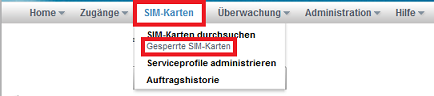
Your Locked SIM cards are displayed under SIM Cards > Locked SIM Cards.
-
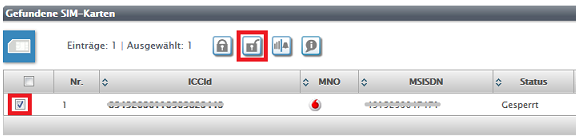
Select the desired SIM card(s) and then click on the Unlock icon.
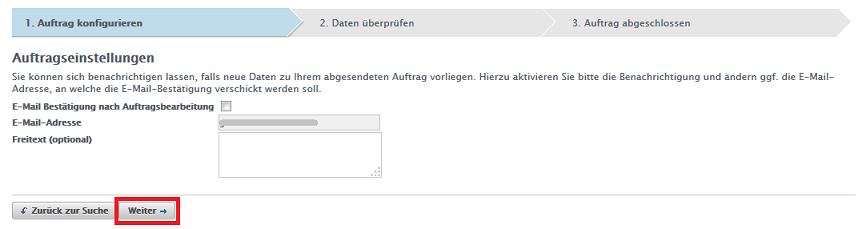
- You have the optional option here to receive the status of the unlocking by email. Click on Next.
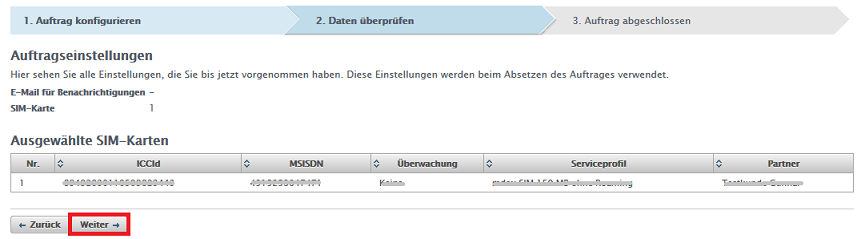
- Your selected SIM card(s) for activation (unlocking) will be displayed. Please click on Next.
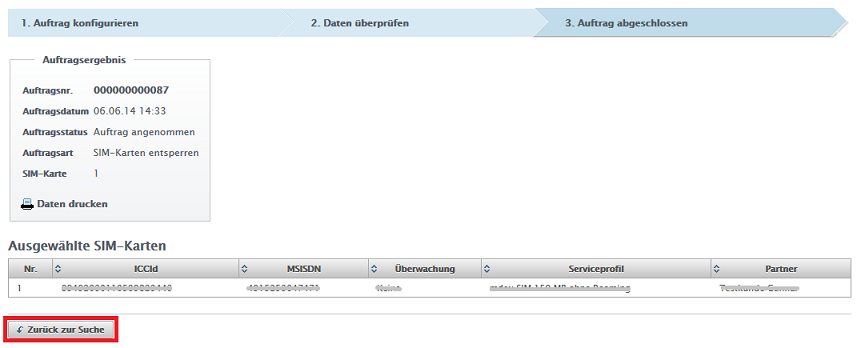
- The order to activate (unlock) has been accepted by the system and will be executed within the next few minutes. Click the button Back to Search.
-
Click on Start Search to update the current SIM card status.
If the status still shows a and an order number is present under "Current Order", the process is still in progress. Please click again on Start Search after a few minutes to refresh the status display.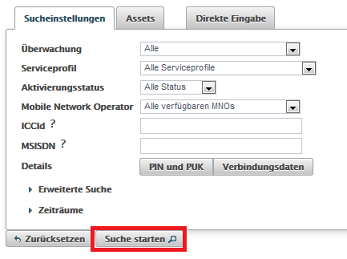

-
As soon as the status shows only Activated (without
and without an entry in the "Current Order" field), the activation (unlocking) of the SIM card has been successfully completed.
Lock mdex SIM
You have the option to Lock your mdex SIM card in the mdex Connection Management Portal (mCOP).
- Log in to the mdex Connection Management Portal: mCOP
-
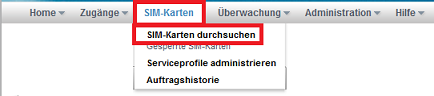
Click on SIM Cards > Search SIM Cards.
- Click on Start Search.
You can refine the search by setting "Activation Status" to e.g. "Activated". Then only your activated SIM cards will be displayed.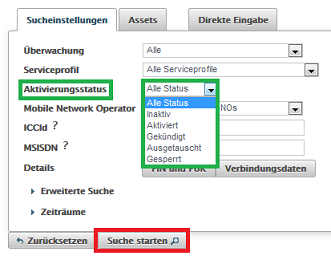
-
Select the desired SIM card(s) and click the Lock icon.
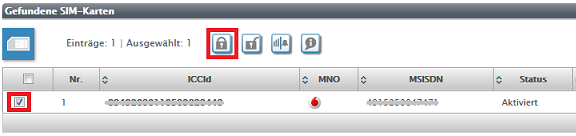
- You have the optional option here to receive the status of the Locking by email. Click on Next.
-
Your SIM card(s) to Lock will be displayed. Click on Next.
- The order to Lock has been accepted by the system and will be executed within the next few minutes. Click on Back to Search.
-
Click on Start Search to update the current SIM card status.
If the status still shows a (and an order number is shown under "Current Order"), the process to Lock the SIM card is still in progress. Please click again on Start Search after a few minutes to refresh the status display.
-
As soon as the status shows only Locked (without
and without an entry in the "Current Order" field), the SIM card has been successfully Locked.