If the connection of the DevicePro SIM Tunnel or the mdex Control station device on a Windows PC or server is to be automatically established at system startup, this can be achieved using the OpenVPN GUI and the Windows service "OpenVPNService" according to the following instructions. Please also note the information listed in the section Important Notes on Operation.
Set Up OpenVPN Connection Establishment as a Service
- Download the configuration file (.ovpn) from the portal, which already includes the access data (username & password) of the OpenVPN device:
- Download (.ovpn) for 'DevicePro SIM Tunnel' (for SIMPro/DevicePro users)
- Download (.ovpn) for 'mdex Control Centre Tunnel' (for mdex mCOP users)
- Download the current Windows 32/64-bit MSI installer from https://openvpn.net/community-downloads/ and run the installation.
- Copy the configuration file (.ovpn) into the folder
 C:\Program Files\OpenVPN\config-auto.
There must be no configuration files (.ovpn) with identical filenames in the directories C:\Program Files\OpenVPN\ and C:\Program Files\OpenVPN\config-auto. If the configuration file (.ovpn) is already located in the directory .../OpenVPN/config, it must either be deleted there or the filename changed accordingly. - In the Windows Services Management under Computer Management -> Services and Applications -> Services, set the startup type of the OpenVPN Service to Automatic.
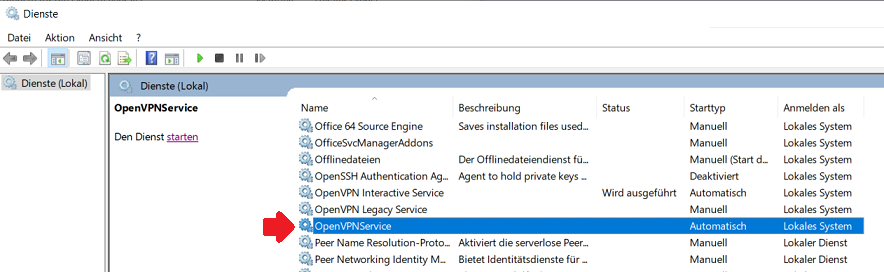
- Now restart the Windows PC or start the service.
The configuration file (.ovpn) located in the directory C:\Program Files\OpenVPN\config-auto is recognised when the "OpenVPNService" service starts or when the PC/server boots up, which automatically establishes an OpenVPN connection.
Important Notes on Operation
Please note the differences in operating the OpenVPN GUI as a service compared to manual control:
- The OpenVPN GUI is now non-functional and therefore no longer displays the current connection status as an icon in the Windows taskbar.
-
The establishment of the OpenVPN connection is controlled exclusively by the Windows service 'OpenVPNService':
Startup Type Action Automatic: During the startup of the PC or server, the service is automatically activated, thereby establishing the OpenVPN connection. Start Service: The OpenVPN connection is established. Stop Service: The OpenVPN connection is disconnected. - The connection must not be (additionally) established manually via the OpenVPN GUI, as this leads to frequent connection interruptions.
- The log file for the OpenVPN connection establishment is located in the folder C:\Program Files\OpenVPN\log.